How to Update 3839 Cloud Gaming to the Latest Version
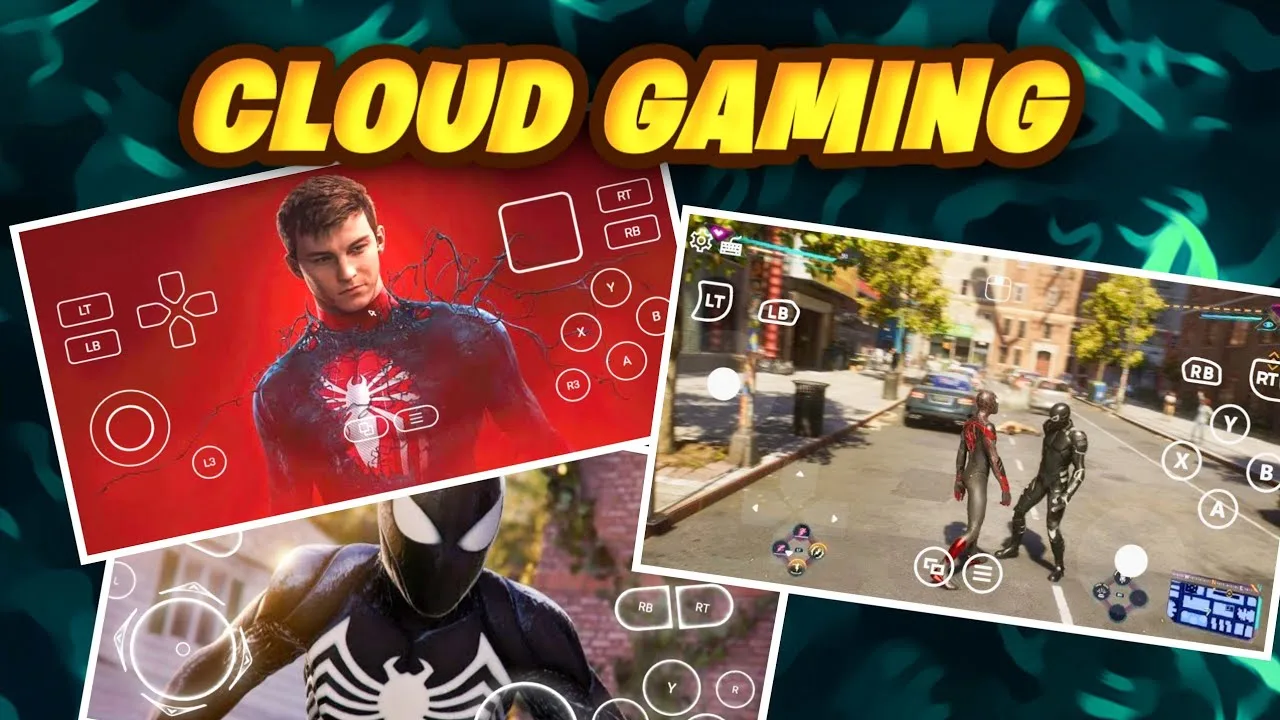
Updating a cloud gaming app is slightly different from updating a normal game, because the app is mostly a doorway to servers that do the heavy lifting. Even so, keeping 3839 Cloud Gaming on Android current matters: updates usually bring server-routing improvements, controller fixes, and login repairs that directly affect how smooth your sessions feel.
This guide walks through the whole update process in order: checking the version you have, getting the newest build, and confirming the update actually applied. If you have never installed the app before, start with how to install 3839 Cloud Gaming on Android instead, then come back here when the next release lands.
Check the Version You Are Running
Open the app and look for the version line in the settings or profile area before you change anything. Knowing your current build tells you whether an update is genuinely available or whether the problem you are chasing sits somewhere else, such as your connection. It also helps when you compare notes with support or other players, because behaviour can differ between builds.
Write the version down or take a screenshot. If the app offers release notes, skim them for mentions of streaming quality, input handling, or account changes. Those three areas explain most of the visible differences between one version of a cloud client and the next.
Download and Install the Update
Get the newest build from the 3839 Cloud Gaming download page so you know the file is the current release rather than an old copy saved in a chat or a folder. Before installing, make sure the phone has enough free storage for the package plus temporary extraction space, and connect to a stable Wi-Fi network so the download does not corrupt halfway.
Install over the existing app rather than uninstalling first. An in-place update keeps your login, settings, and saved preferences intact on most Android builds. If the installer warns that the signature differs, stop and re-download from the same source you used originally, because mixed sources are the usual cause of that message.
Confirm the Update Applied
After installing, reopen the app and check the version line again to confirm it changed. Then launch a short session in a game you know well. Familiar content makes differences obvious: menu speed, stream stability, and controller response are easier to judge than in a game you are still learning.
If the version number did not change, the install probably did not complete. Clear the leftover package from your downloads folder, restart the phone, and repeat the install. A later section of this guide explains the related housekeeping in how to clear cache in 3839 Cloud Gaming, which solves several half-applied update states.
Fix Common Update Problems
The most common update failure is an install that stalls at the same percentage. That is usually storage pressure or a damaged download, and a fresh file plus a restart fixes most cases. The second most common is being logged out afterwards; sign back in once and the app should remember the session again.
If games stutter only after an update, do not assume the new build is worse. Server assignments and cached routes change during updates, so give it one evening of normal play. Persistent problems after that point belong with the checks in the troubleshooting guide rather than repeated reinstalls.
Update on a New Phone or After a Reset
Moving to a new phone is an update of a different kind: install the current build fresh rather than copying an old one across. Sign in with the same account and your library and cloud progress return with you. Settings stored locally, such as controller pairings, need a minute of re-setup on the new device.
After a factory reset, treat the phone as new. Install, sign in, and check the version line before restoring anything else, so you are diagnosing a clean client if something later misbehaves. Most post-reset weirdness is leftover backup data, not the current build.
What to Check Right After Updating
Spend two minutes inside the new build before a long session. Confirm you are signed in, your library looks complete, and a familiar game launches. Updates occasionally reset a display or controller preference, and discovering that mid-game is more annoying than discovering it in a menu.
Test one cloud save by opening a game with progress you recognise. Seeing your save exactly where you left it confirms the account side survived the update intact, which is the part players actually care about. Graphics and sound settings can be re-chosen in seconds; save anxiety cannot.
A Simple Update Routine
Turn updating into a routine rather than an event and it stops interrupting your play. Once a month, on a day you are not planning a long session, open the app, read the version line, check for a newer build, and install it while the phone charges. The whole ritual takes five minutes, and it replaces the far more annoying experience of being forced through an update at the exact moment you sat down to play.
The routine also protects your troubleshooting. When a problem appears, the first question is always whether the build is current, and a player with a monthly habit can answer instantly instead of excavating version numbers. Habits beat heroics in maintenance, and this is the cheapest habit in the whole of cloud gaming.
Treat updates as routine maintenance rather than an event. A two-minute version check every few weeks keeps the client matched with the servers it connects to, which is where most of the streaming quality is decided anyway.
Keep the installer file until the new version has survived a few days of normal use. If a build misbehaves, that file is your way back while you report the problem.
Related articles
- 3839 Cloud Gaming Lag and Latency Fixes That Actually Help Practical fixes for lag and latency in 3839 Cloud Gaming: connection checks, router settings, in-app options, and habits that keep streams responsive. Read article
- Best Internet Settings for 3839 Cloud Gaming Set up your home internet for 3839 Cloud Gaming: recommended speeds, Wi-Fi band and channel choices, router QoS, DNS, and wired options explained plainly. Read article
- 3839 Cloud Gaming Controller Setup Guide Connect and configure a Bluetooth or USB controller for 3839 Cloud Gaming on Android: pairing steps, mapping checks, and fixes for input problems. Read article