3839 Cloud Gaming Controller Setup Guide
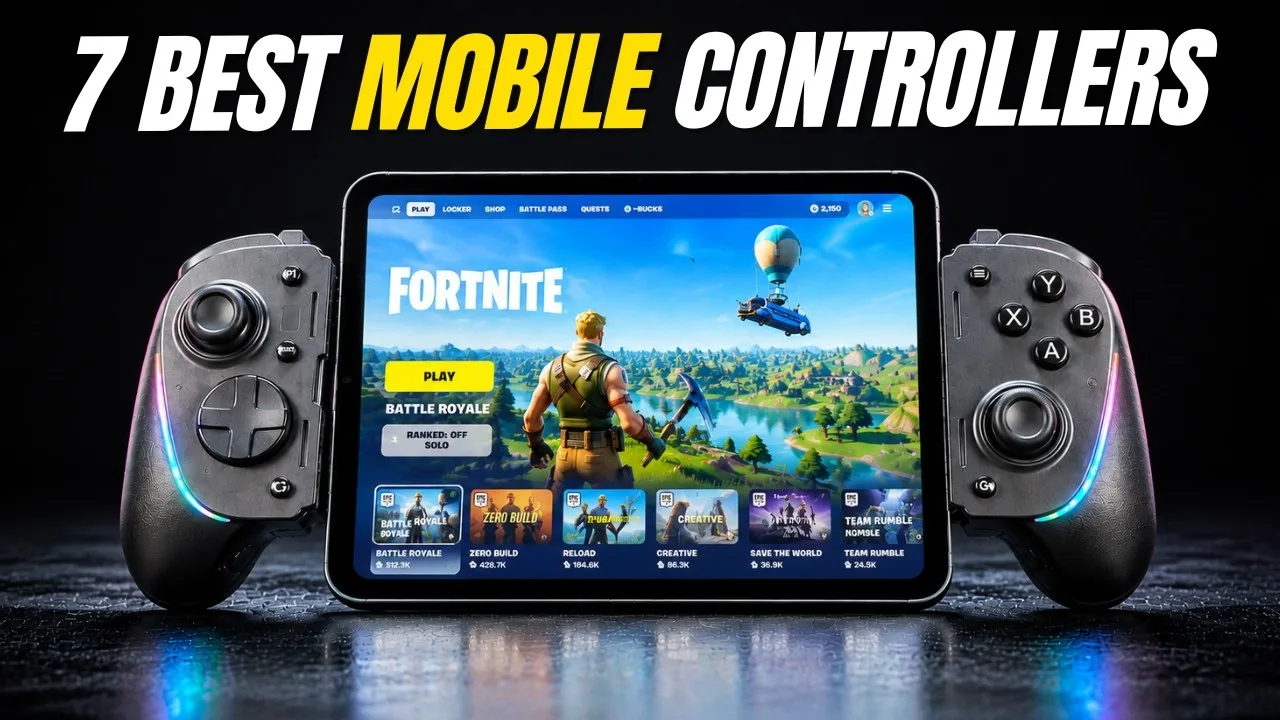
Touch controls are fine for menus and slow games, but a physical controller changes what cloud gaming feels like. Pairing one with the 3839 Cloud Gaming service takes a few minutes, and most problems come from the pairing stage rather than the app itself. This guide covers Bluetooth and wired controllers on Android phones and tablets.
You do not need a special brand. Most modern Xbox, PlayStation, and generic Android controllers pair the same way, and the app reads standard Android gamepad input, so a controller that works in other games will normally work here.
A badly set up controller hides itself well: the game feels heavy, jumps arrive late, and the service takes the blame for a pairing problem. Ten minutes of deliberate setup at the start prevents that misdiagnosis for the life of the controller, which is why this guide treats connection, mapping, and testing as one job rather than three.
Pair a Bluetooth Controller
Put the controller in pairing mode first; the exact button combination is in its manual, and it usually involves holding a sync or share button until the light flashes quickly. Then open the phone's Bluetooth settings, scan, and select the controller when it appears by name.
Pair before you open the app, not after. Android routes gamepad input at the system level, and apps detect controllers most reliably when the connection already exists at launch. If you paired mid-session and nothing responds, close and reopen the app once.
Check Mapping Inside the App
Start a game and test the basics deliberately: both sticks, the D-pad, face buttons, triggers, and the menu button. Cloud platforms sometimes label buttons by the host system's convention, so an on-screen prompt showing a different letter than your controller prints is normal and not a fault.
If a stick drifts or a button double-fires, test the same controller in another game or a free gamepad tester app. Hardware wear shows up everywhere, while app-specific mapping issues do not. That distinction saves a lot of unnecessary re-pairing, a point also covered in the input delay guide for 3839 Cloud Gaming.
Wired Controllers and TV Play
A USB-C cable or OTG adapter gives the most reliable connection and the lowest controller latency, at the cost of a cable. Wired is a good choice for competitive games and for diagnosing whether a problem is Bluetooth-related: if wired play is perfect, the radio link was the issue.
Controllers also transform big-screen sessions. If you cast or connect the phone to a television, the setup in how to play 3839 Cloud Gaming on TV pairs naturally with a controller, since touch controls stop making sense across the room.
Fix Common Controller Problems
For laggy-feeling input on Bluetooth, move closer to the phone and remove other active Bluetooth devices from the area; crowded radio space adds delay. Turn off the phone's Bluetooth scanning extras in location settings if your Android version offers them, as constant scanning can interrupt gamepad traffic.
For a controller that connects but does nothing, unpair it completely, restart the phone, and pair fresh. Android occasionally keeps a broken pairing profile after an update, and a clean profile is faster than layered troubleshooting.
Multiple Controllers and Player Two
Android handles several paired controllers at once, which makes local multiplayer on streamed party games practical. Pair each controller before launching the app, and test which player slot each one claims in a menu before starting a match you care about.
Keep controllers labelled if your household owns identical models. Swapped profiles and mystery drift complaints often trace back to two similar gamepads being confused, especially when one of them is quietly ageing.
Controller Care and Battery Habits
Controllers used daily for streaming live on charge cycles. Keep a charging cable at your playing spot and top up between sessions rather than running to empty; a controller that dies mid-session also tends to be the one that felt laggy for the previous hour as its battery faded.
Clean sticks and buttons occasionally with a dry cloth. Drift complaints sometimes trace to dust and wear rather than electronics, and a controller that misreads inputs makes a healthy stream feel broken.
When to Blame the Controller
Controllers age in specific ways: sticks drift, buttons lose their snap, batteries swell and fade. In local gaming those faults announce themselves clearly, but in streaming they hide inside the general suspicion that the connection is misbehaving. A controller that misbehaves identically in a local game and a streamed game is confessing; believe it.
Keep one known-good wired controller in the house if you can. As a diagnostic instrument it is unmatched — thirty seconds of wired play separates controller faults, network faults, and service faults from each other more reliably than an evening of guessing, and it doubles as the spare that saves a multiplayer night.
A well-paired controller is the single biggest upgrade for cloud gaming on a phone. Set it up once, test it properly, and the service starts to feel like a console you happen to hold differently.
Re-test the controller after major Android updates; pairing profiles occasionally change behaviour across versions, and a two-minute check beats discovering it mid-match.
Keep this page for the day you buy a second controller or replace the phone. Setup knowledge decays between uses, and the pairing and mapping steps above are much faster to re-read for two minutes than to reconstruct from memory while a game waits on the pairing screen.
Related articles
- How to Update 3839 Cloud Gaming to the Latest Version Learn how to update 3839 Cloud Gaming to the latest version on Android, check your current build, and fix the update problems users hit most often. Read article
- 3839 Cloud Gaming Lag and Latency Fixes That Actually Help Practical fixes for lag and latency in 3839 Cloud Gaming: connection checks, router settings, in-app options, and habits that keep streams responsive. Read article
- Best Internet Settings for 3839 Cloud Gaming Set up your home internet for 3839 Cloud Gaming: recommended speeds, Wi-Fi band and channel choices, router QoS, DNS, and wired options explained plainly. Read article