How to Play 3839 Cloud Gaming on TV
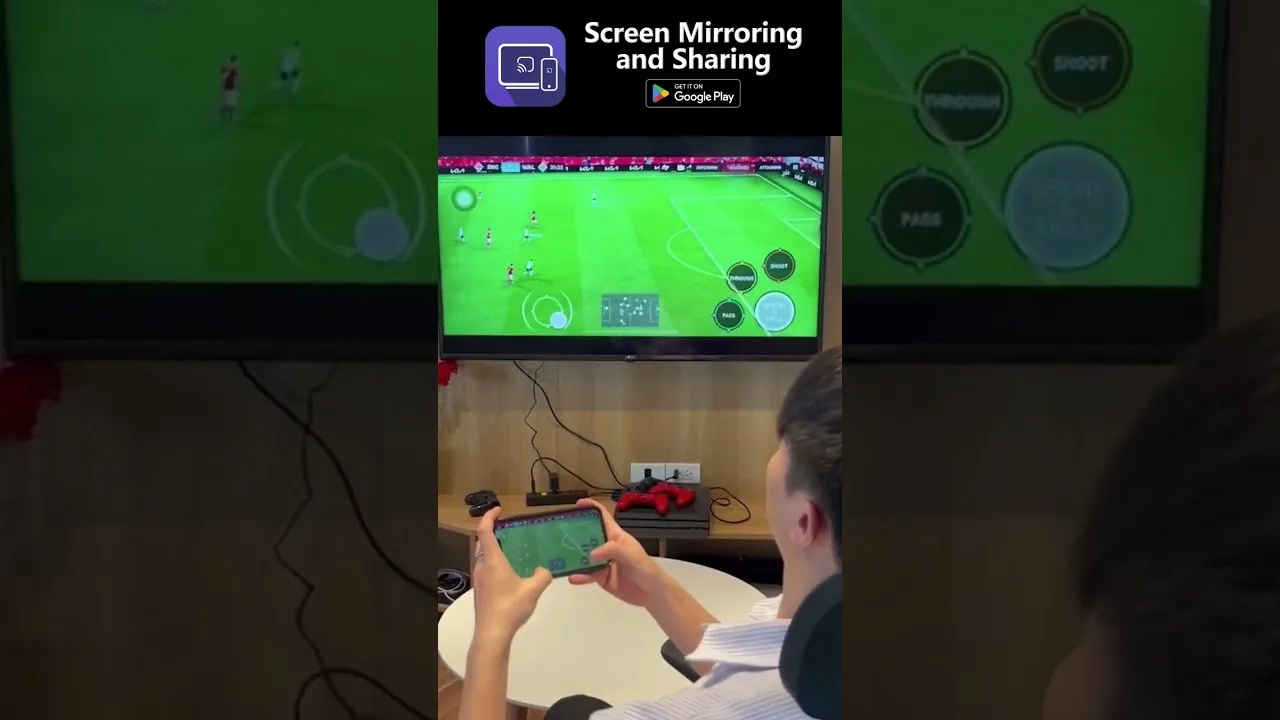
Cloud games look at home on a big screen, and because the heavy rendering happens on a server, your phone only has to send the picture onward. There are three practical ways to get 3839 Cloud Gaming Android app onto a TV: casting, a cable, and running the app on Android TV hardware. Each suits different rooms and budgets.
Whichever route you pick, the connection quality rules still apply. A television makes stream artefacts more visible, so the network habits from the rest of this library matter more, not less, on the big screen.
The living-room version of cloud gaming is also its most convincing: no console under the television, no downloads before guests arrive, and a library that appears the moment the app opens. Getting there takes one setup session and a little honesty about your home network, both covered below in the order you will actually do them.
Cast with Chromecast or Built-In Casting
If your TV or streaming stick supports Google Cast, open the app on the phone, start your game, and use the cast option in the app or the phone's quick settings to send the screen to the TV. Keep the phone on the same Wi-Fi network as the TV, and prefer the 5 GHz band for both.
Casting adds a little latency because the phone relays the picture. It is perfectly playable for most genres, but rhythm and fighting games will feel it. Test with a game you know before committing to a long session, and keep the phone near the router while it acts as the relay.
Use an HDMI Cable for the Cleanest Feed
Many Android phones support USB-C to HDMI output, either natively or through the DisplayPort mode on the port. A cable gives the sharpest picture and the lowest display delay, and it charges nothing extra in latency because there is no second wireless hop.
Check your phone's specifications before buying an adapter, since not all USB-C ports carry video. If yours does not, casting or an Android TV device are the realistic routes. Either way, pair the setup with a Bluetooth controller so you are not tethered to the phone; the steps are in the controller setup guide for 3839 Cloud Gaming.
Android TV and Streaming Sticks
If your television runs Android TV or Google TV, try installing the app directly on the TV hardware. A wired Ethernet connection to the TV or stick removes Wi-Fi from the equation completely, which is the most reliable big-screen configuration available.
Before assuming a TV is too old or weak, check its fit against the 3839 Cloud Gaming device compatibility guide; cloud clients are light by design, and many modest TV processors run them well because the game itself renders remotely.
Settings for the Big Screen
Set the TV to its game mode if it has one. Game mode disables most of the picture processing that adds display delay, and on some televisions the difference is larger than anything your network can produce. Turn off motion smoothing for the same reason.
Raise the stream quality one step if your connection allows it; compression that is invisible on a phone becomes visible on a 55-inch panel. If the picture then stutters, step back down and accept the softer image, because stability beats resolution for playability every time.
Sound on the Big Screen
Television speakers vary wildly, and a soundbar or even a modest Bluetooth speaker lifts streamed games more than another picture setting would. Send audio through the TV rather than the phone when casting, so picture and sound take the same path and stay in step.
If audio arrives late against the picture, look for the TV's audio delay or lip-sync control, usually in the sound menu. A small adjustment there aligns dialogue and effects without touching anything else in your setup.
Multiplayer on One Screen
The TV setup is where local multiplayer returns to cloud gaming. Pair a second controller before launching, agree who is player one, and pick games designed for shared screens; streamed party and sports titles handle the arrangement gracefully.
Seat players where the controller signal stays strong — usually the same sofa distance you already use. Bluetooth range is generous in open rooms and surprisingly short through bodies and furniture, which only matters when four players crowd the signal path.
The Living-Room Checklist
Before a planned TV session, run the short version of setup: television on the right input with game mode active, controller charged and paired, phone or TV app signed in, and the household warned that the good Wi-Fi is spoken for. Ninety seconds of preparation prevents the familiar twenty minutes of standing around menus while guests lose interest.
After the session, note what annoyed you while it is fresh — a cable too short, a controller that kept sleeping, a picture setting that reset. Living-room setups improve by accumulation of small corrections, and each one is obvious exactly once: in the moment it goes wrong.
A phone in your pocket plus a television you already own is a complete cloud console. Pick the connection method that matches your room, set the TV to game mode, and the service does the rest.
Invite the household in once it works. Big-screen cloud gaming is the most social form of the service, and a shared library on the main TV gets used more than any private setup.
Related articles
- How to Update 3839 Cloud Gaming to the Latest Version Learn how to update 3839 Cloud Gaming to the latest version on Android, check your current build, and fix the update problems users hit most often. Read article
- 3839 Cloud Gaming Lag and Latency Fixes That Actually Help Practical fixes for lag and latency in 3839 Cloud Gaming: connection checks, router settings, in-app options, and habits that keep streams responsive. Read article
- Best Internet Settings for 3839 Cloud Gaming Set up your home internet for 3839 Cloud Gaming: recommended speeds, Wi-Fi band and channel choices, router QoS, DNS, and wired options explained plainly. Read article